


Pulling data from BigQuery is made straightforward with this connector. To learn more about how to get a JWT for access credentials if needed, please refer to Google’s documentation here. Settings Query: This should be a query that Selects a table or a view from withing Google Big Query. Please note Google Big Query will refuse to export tables if they have a lot of “Order” or “Group” statements or potentially if the table is poorly built in Google Big Query. Credentials (optional): If there are access restrictions on the Google Big Query data then you need to provide the json access credentials for a service account with access to that data here. Show File Content: When a user wants to review the uploaded credentials json file they can use this button. It will load a pop-up window within the browser that displays the file contents. Big Result (optional): This option is for users using legacy sql in their query to set the AllowLargeResults flag.
You should now have downloaded a JSON file with credentials for your service account. It should look similar to the following:
{
  "type": "service_account",
  "project_id": "*****",
  "private_key_id": "*****",
  "private_key": "*****",
  "client_email": "*****",
  "client_id": "*****",
  "auth_uri": "https://accounts.google.com/o/oauth2/auth",
  "token_uri": "https://oauth2.googleapis.com/token",
  "auth_provider_x509_cert_url": "https://www.googleapis.com/oauth2/v1/certs",
  "client_x509_cert_url": "*****",
  "universe_domain": "googleapis.com"
}
In InFlow, enter the following information in the Connector's Settings tab
Selected
Dataset (required)
Enter the name of an existing dataset from your Google Big Query project
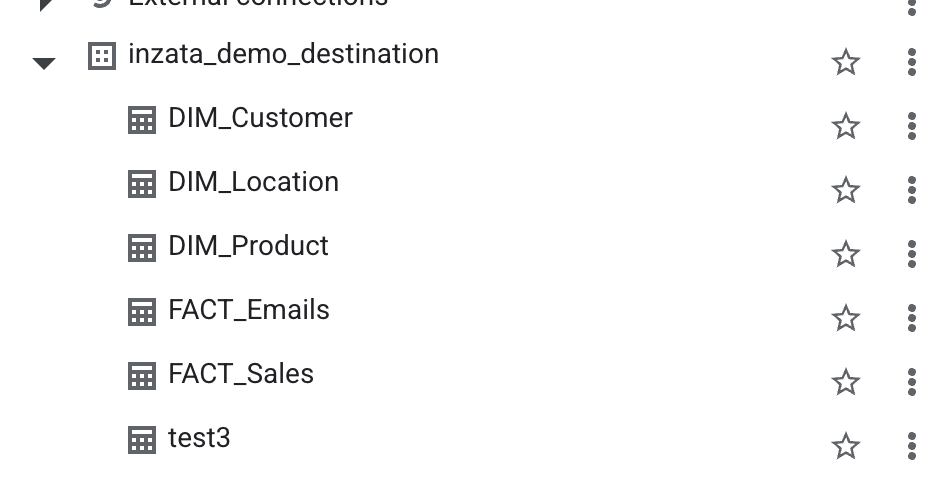
Table (creates new if does not exist) (required)


